
How to Automate Epic EHR Without App Orchard or API Access

By Faiz · July 7, 2026
Contents
- Step 1: Understand Why App Orchard and FHIR APIs Often Aren't an Option
- Step 2: Map the Workflow You Need to Automate Before Writing a Single Line
- Step 3: Set Up a Stable Desktop Session on the Epic Client
- Step 4: Build a Deterministic Automation Script for the Happy Path
- Step 5: Add a Self-Healing Recovery Layer for UI Changes and Edge Cases
- Step 6: Verify Every Action Before Moving to the Next Step
- Step 7: Instrument, Monitor, and Maintain the Automation in Production
- Conclusion
A specialized engineering team at a growth-stage AI scribe startup spent four months in the Epic App Orchard waiting room. They had a signed contract with a major health system, but their product could not go live because they lacked a way to write clinical notes back into the patient record. This is the standard reality for healthcare innovators. The vendor keeps the keys to the data, and the integration queue is a graveyard for startup runway.
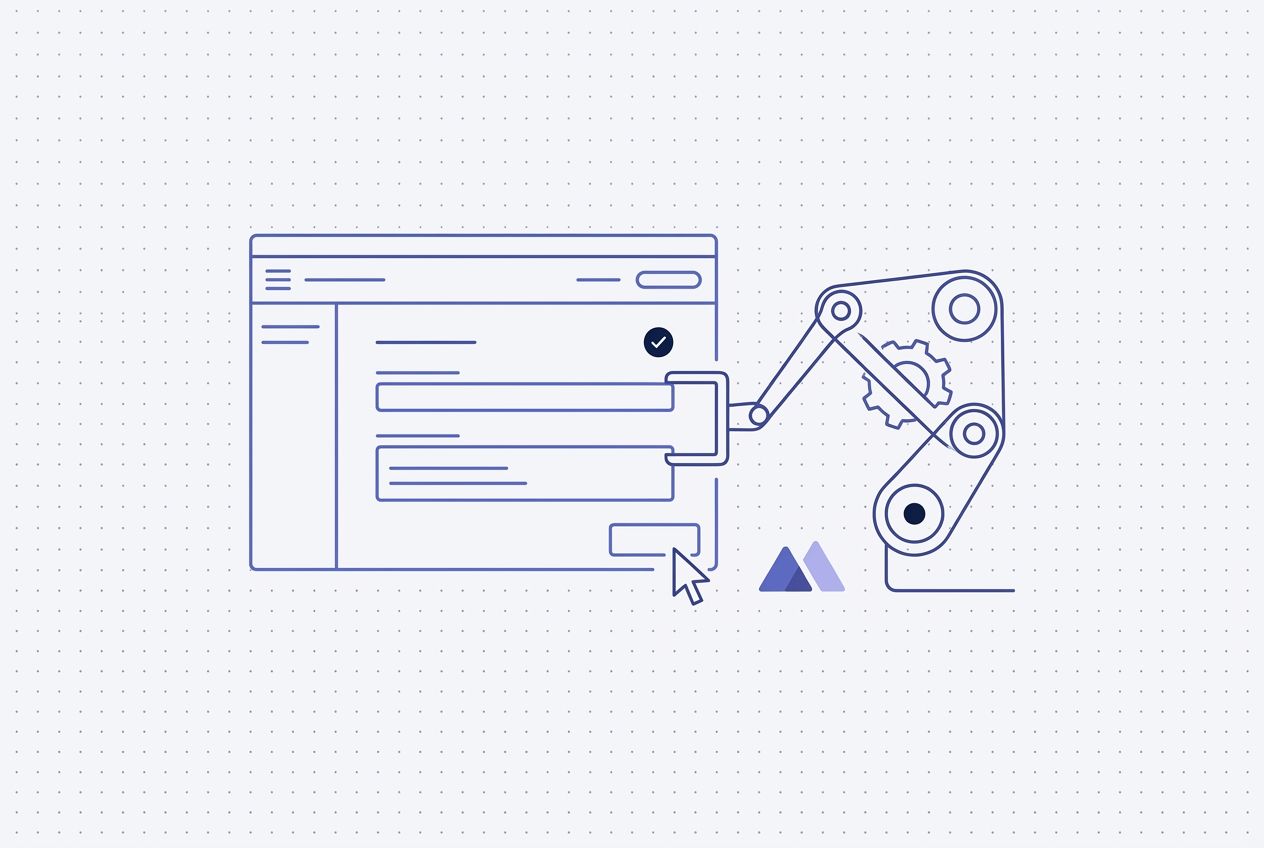
You do not have to wait for a FHIR write endpoint that might never exist. If a human can perform the workflow in the Epic Hyperspace desktop client, a machine can do the same. This guide shows you how to automate Epic EHR without API access by combining deterministic desktop automation with a self-healing recovery layer. By the end, you will have a blueprint for deploying clinical workflows into production in weeks rather than quarters. You only need a stable Windows environment and a clear map of the UI steps you intend to replicate.
Step 1: Understand Why App Orchard and FHIR APIs Often Aren't an Option
Epic is the dominant force in electronic health records, but its ecosystem is designed for stability and gatekeeping rather than rapid third-party innovation. When you try to automate Epic EHR without API access, you are usually reacting to one of three barriers. First, the onboarding process for App Orchard, which has been replaced by the Epic Showroom and Connection Hub, is notoriously slow. It requires extensive security reviews and legal agreements before developers can even begin testing. For a seed or Series A company, this timeline is a non-starter.
Second, even if you get through the gate, the available FHIR APIs are frequently insufficient. While open.epic.com provides a free, open FHIR sandbox for prototyping with synthetic data, many of the most valuable actions (like writing specific discrete data elements or triggering complex orders) are read-only or simply not exposed via FHIR. If your workflow requires a write operation that the current fhir.epic.com specifications do not support, you are stuck. You cannot build a business on the promise of a future API update that may be years away.
Third, the cost is often prohibitive. Epic charges significant fees for integration access, which can eat your margins before you scale. Many health systems also lack the internal IT resources to configure these integrations for you, even if Epic allows them. This creates a situation where the desktop UI is the only reliable interface available. Traditional RPA tools like UiPath have tried to solve this, but they rely on brittle selectors that can break during software updates. You need a way to drive the UI that is as reliable as an API but as flexible as a human operator. This is why EHR integration without an API has become the standard path for clinical AI companies that need to move fast.
Step 2: Map the Workflow You Need to Automate Before Writing a Single Line
Before you write a single line of Python, document the target workflow with clinical precision. Epic Hyperspace is a massive application with thousands of buttons, tabs, and hidden menus. Most engineers make the mistake of trying to build a general-purpose bot. Instead, define the specific happy path for a single high-value task, such as entering a prior authorization code or uploading a structured note.
Start by recording a human performing the task on the actual Epic client you will be using. Pay attention to keyboard shortcuts. In Epic, Alt keys and Tab sequences are often more stable than mouse clicks because they do not rely on screen resolution or element positioning. Identify the unique window titles or breadcrumbs that appear at each step. If you are automating a note entry, note the specific buttons like 'Sign' or 'Pend' that finalize the record.
Mapping the workflow also means identifying the data inputs your automation will require. If your AI product generates a JSON object with patient details, you must map every field in that JSON to a specific field in the Epic UI. This is where you decide which parts of the automation will be deterministic (clicking a known button) and which parts might require vision-based reasoning. If the UI layout changes between different departments in the hospital, your map must account for those variations. A clear workflow map is the difference between a bot that works on your machine and a bot that works in a production hospital environment. For more on this, look at our guide on EHR automation.
Step 3: Set Up a Stable Desktop Session on the Epic Client
Epic does not run in a browser. As Epic's native EHR interface, it is a thick client application typically delivered via Citrix or VMware Horizon. To automate it, you must host a Windows environment where the Epic client can run persistently. This is the infrastructure layer of your automation. Use a dedicated Windows VM that mimics the environment of a clinician workstation.
Citrix deployments add a layer of complexity because you are essentially driving a video stream of a remote desktop. Traditional object-based automation fails here because there are no underlying DOM elements or UI handles to grab. You are looking at pixels. To handle this, your environment must have a consistent screen resolution and scaling setting. If the resolution changes, your click coordinates will miss.
Minicor handles this by deploying its desktop client directly into these environments, whether they are on-premise, in the cloud, or behind a Citrix gateway. The platform is containerized, which is essential for HIPAA compliance because it allows the entire automation stack to run inside the healthcare provider's network. No patient data ever needs to leave the perimeter. You must also ensure that session management is reliable. If the Epic client times out or the Windows session locks, your automation will stall. Use service accounts with the correct permissions to keep the session active and ready to receive instructions via your API endpoint.
Step 4: Build a Deterministic Automation Script for the Happy Path
Speed and cost matter in production. You should not use a high-level reasoning model to decide where to click every single time. Instead, build a deterministic script for the happy path. This script should follow a sequence: open Epic, search for the patient MRN, navigate to the correct chart, and enter the data. Build a deterministic sequence for this that integrates easily with your existing AI stack.
In your script, define your actions as a series of commands. For example, move_mouse(x, y), type_text("Note Content"), and press_key("enter"). This deterministic approach is fast and uses minimal compute. This approach works reliably when the UI remains in its expected state. You are essentially building a specialized API wrapper around the desktop application.
Avoid the trap of traditional RPA where scripts are so rigid that a single popup window breaks the entire run. Use image recognition for critical anchors. Instead of clicking blindly at a coordinate, find the 'Sign Note' button icon on the screen and click its center. This makes your script more resilient to small shifts in window positioning. By treating the automation as deterministic code rather than a record-and-play macro, you can more reliably manage your clinical integrations. This hybrid approach is why many AI companies are replacing legacy RPA with computer use agents.
Step 5: Add a Self-Healing Recovery Layer for UI Changes and Edge Cases
The primary reason EHR automation fails is the unpredictability of the UI. Epic might push a small update that moves a button, or a patient chart might trigger an unexpected 'Duplicate Record' alert. This is where pure deterministic scripts fail and where self-healing automation becomes mandatory.
When the deterministic script detects an error (like a missing button or a frozen screen), it should hand over control to a computer use agent. This agent uses a vision model to see the screen and a reasoning model to decide what to do next. If a popup is blocking the path, the agent identifies the 'Close' button, clicks it, and then returns control to the deterministic script to finish the job. This recovery layer is the core of the Minicor architecture.
By using this hybrid model, you achieve significantly higher accuracy for clinical workflows. Pure computer use agents that reason from scratch for every action are often too slow for high-volume production. A self-healing layer ensures that your automation adapts to UI changes without requiring an engineer to rewrite the script every time Epic ships a patch. This reduces the total cost of ownership and allows your engineering team to focus on your core AI product rather than maintaining brittle scripts. Read more about the future of enterprise desktop automation to understand how these agents are evolving.
Step 6: Verify Every Action Before Moving to the Next Step
In a clinical environment, you cannot assume an action succeeded. Every click must be verified. This is the reflection step. After your automation clicks a button or types text, the system must analyze the screen to confirm the expected change occurred. If you click 'Save,' you should see a 'Saved successfully' toast message or the window should close. If the window is still open, the action failed.
Your automation should return structured JSON at the end of every run. This JSON provides the structured results of the workflow execution. If you are writing a note, the automation should capture a final screenshot of the signed note in the chart and return the success status to your main application. This creates a closed-loop system.
Reflection also handles data validation. If the automation types an MRN into a search bar, it should read the patient name back from the screen to confirm it matches the expected record before proceeding with any write operations. This prevents the nightmare scenario of writing data to the wrong patient's chart. By building verification into the primitive level of your automation, you build a system that is safer and more reliable than a human performing manual data entry. Verification is a key part of how AI agents work with legacy software to ensure data integrity.
Step 7: Instrument, Monitor, and Maintain the Automation in Production
Automation is not a 'set it and forget it' project. Once you are running at scale (handling thousands of patients per day), you need full observability. Every run should be recorded. When a failure occurs, your team should be able to watch a video replay of exactly what the bot saw and did. This is far more effective than digging through thousands of lines of text logs.
Set up real-time alerts. If an automation failure occurs, your engineers can receive a Slack notification immediately. This lets you identify if a hospital has changed a configuration or if a specific department's UI has diverged from the standard. Minicor automatically retries failed executions at no additional cost.
Minicor provides this entire observability suite out of the box. You get full video recordings of every run and full execution context for debugging. This level of transparency is essential for gaining the trust of hospital IT and compliance teams. They need to see that the automation is behaving exactly like an authorized user would. With a usage-based pricing model, you only pay for successful tasks, which aligns your costs directly with the value you are delivering to the healthcare provider.
Conclusion
Automating Epic EHR without API access is the only way for modern health-tech companies to bypass the multi-month bottlenecks of legacy gatekeeping. By combining deterministic scripts for speed and computer use agents for self-healing recovery, you can build integrations that are both fast and reliable. The goal is not just to move data, but to build a stable bridge that allows your AI to function at the speed of modern software within the constraints of legacy systems.
If you are currently blocked by an Epic integration or tired of maintaining brittle RPA scripts, Minicor can help you go live in weeks. We provide the infrastructure, the self-healing agents, and the SOC 2/HIPAA compliance you need to scale clinical workflows securely. Contact Minicor today to see a demo of our self-healing agents driving Epic Hyperspace in a production environment.
Visit Minicor
RPA platform for deploying AI into legacy desktop systems with self-healing desktop automations and computer-use agents.
Get startedSources
- https://open.epic.com
- https://fhir.epic.com
- https://minicor.com/
- https://www.fiercehealthcare.com/health-tech/epic-launches-new-showroom-website-3rd-party-apps-services
- https://saga-it.com/blog/epic-showroom-app-orchard-publishing
- https://www.fiercehealthcare.com/health-tech/epic-plans-overhaul-its-app-market-opens-new-connection-hub-developers-here-are-key
Frequently asked questions
Is it legal to automate Epic EHR without an API?
Yes, automating the UI is generally permitted as long as the automation uses an authorized user account and complies with the healthcare provider's security policies. This approach is functionally equivalent to a human clinician using the software. Minicor is HIPAA compliant and SOC 2 Type II certified, ensuring that these automations meet the rigorous security standards required for clinical data handling.
How does self-healing automation handle Epic UI updates?
Traditional RPA scripts break when a button moves or a label changes. Minicor's self-healing agents use vision and reasoning models to identify the intended action even if the UI has shifted. The agent reflects on the current screen state, corrects the error, and updates the deterministic path for future runs, maintaining a 93 to 96% accuracy rate through vendor updates.
Can I use this for Epic instances running on Citrix?
Absolutely. Because Minicor uses computer vision to see the screen, it works seamlessly with Citrix, VMware Horizon, and other remote desktop protocols. It does not need access to the underlying application code or DOM, making it the ideal solution for driving Epic Hyperspace in restricted virtual environments.
What is the typical timeline to go live with an Epic automation?
While App Orchard can take 6 to 12 months, companies using Minicor typically go from zero to production in 2 to 4 weeks. This includes workflow mapping, recording, and deploying the self-healing automation into the customer's environment. Minicor provides embedded engineers during this phase to ensure a smooth transition.
Related reading
Written by
Faiz
RPA platform for deploying AI into legacy desktop systems with self-healing desktop automations and computer-use agents.